 Vibee
Vibee For app owners
Preview and publish changes
Review new text and layout with real data and publish the changes when you are ready.
What the preview shows
The preview is for the owner and accepted co-authors. It shows the prepared app design with real data. App users keep using the existing version. The preview link requires sign-in to a Vibee account with editing access to this app.
Authors can see data beyond ordinary user role or own-record restrictions in the preview. Check a technician’s or customer’s permissions in the live app using the corresponding account.
Who can edit and publish changesPrepare and open your changes
Describe the change to your assistant
Give the app name or address and the text or layout change you want. Ask for a preview before publication.
Open the preview
Use the link from your assistant or find Changes ready to review in app management and choose View preview. Check pages, record details and panels for editing data.
In my Newman Repairs app, change the text and layout of the job detail page. Keep all data, features and permissions. Prepare a preview and send me the link. Do not publish the changes yet.
Edit text and layout in the preview
Enable editing
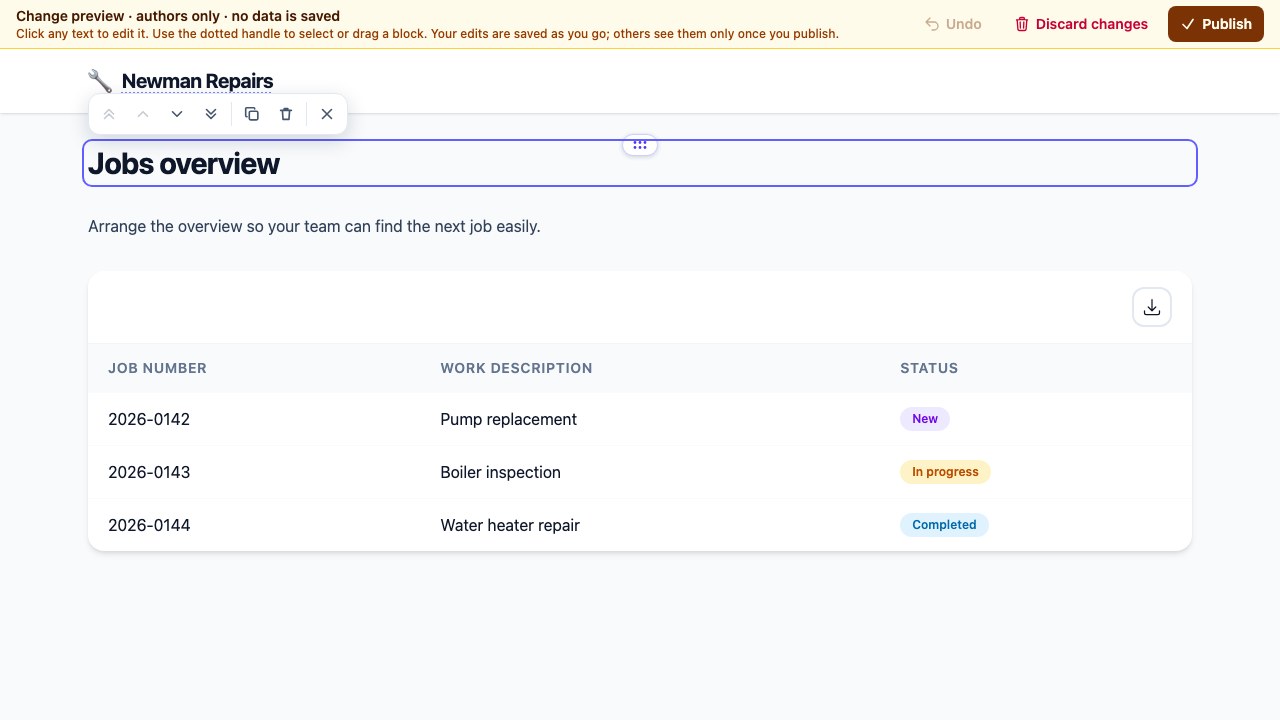
In app management, choose Edit texts and layout for the prepared changes. Click text to edit it. Edits are saved to the prepared changes as you work.
Arrange blocks
Use the dotted handle to select or drag a block. The selected block’s menu lets you move, duplicate and delete it. You can also edit available labels and layout inside open record panels.
Undo the last change
Undo in the top bar reverses the last text or layout edit. If another author has edited the changes since, follow the message shown.
Editing a translation updates every place that shares the same original text in the main language. Check the other pages where that text appears too.
What is saved and what is read only
Text and layout edits are saved. Record data cannot be changed in the preview. A form or button in the preview does not save a record change or send a message. Some stored files or images may appear as a placeholder image.
Duplicating a block adds another part of the page. To copy a stored record, use a separate action in the live app if the owner has configured it.
Discuss changes to what and how the app stores data, permissions or automated messages separately with your assistant. They may take effect directly in the live app. Use the preview to check the design; check saving with a test record in the live app.
How to work with records and create a copyHow to check a button without saving changesPublish or discard changes
Review the whole result
Check the affected pages on a computer and phone. Agree with other authors that the prepared version is ready.
Publish the changes
Choose Publish in the preview’s top bar or app management and confirm. App users will see the new design. Publishing from the preview opens the same page in the live app.
Or discard the changes
Discard changes removes all prepared edits after confirmation. The live app stays unchanged. Discarding cannot be undone.
If the live app has changed since, the prepared changes can no longer be published. Discard them and prepare a new preview. If another author edited the prepared changes, reload the page and review them before publishing again.
How to restore an earlier app version