 Vibee
Vibee For owners and users
Work with records
Find a record, fill in a form or create a copy with Duplicate when available.
Before you start
Open your app address and sign in if required. Your app defines page, field and button names; this guide uses service jobs as an example. Available actions depend on your permissions.
Find the right record
Open the overview
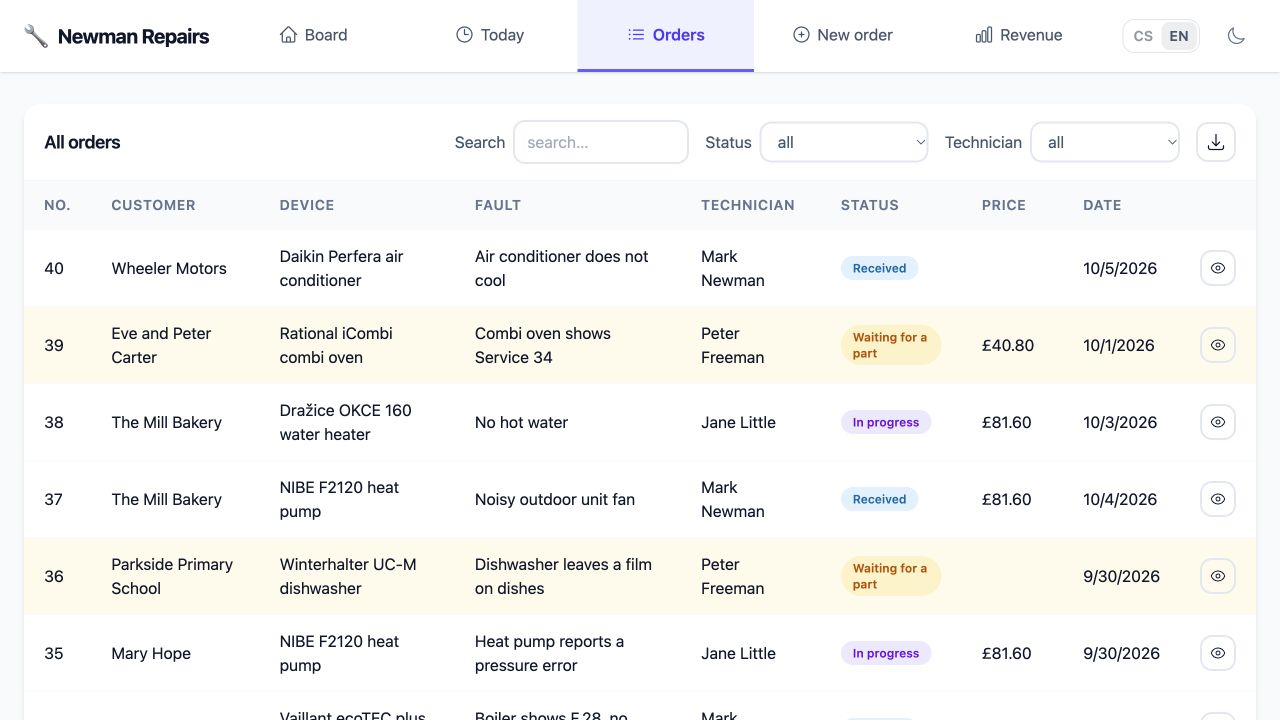
Choose a page such as Jobs or Clients from the menu. If it offers search, enter a name or another value you want to find.
Use filters
Choose a status, technician or date range from the available filters. Filters combine. If nothing appears, clear the search and reset filters to all.
Open the details
Click Detail or a similar button on the row you want to open. On mobile, the overview may show individual cards instead of a wide table.
Add and change data
Add or edit a record
Create a record through a form or a button such as New job. Edit an existing one using an action on its row or detail page, such as Record work.
Complete and confirm
Fill in the required fields and save. Wait for confirmation and check that the overview or detail shows your changed data.
Check bulk actions carefully
If the overview allows selecting several rows, select them and check the count and records before applying a shared change. Not every app offers bulk actions.
Contacts, ratings and selections
Enter email, phone and web addresses in the corresponding fields. For numbers, enter only the value; a unit may be shown beside it. A slider selects a value within configured bounds. Click a star to enter a rating; click the same star again to clear an optional rating.
If a field allows several options, select or search for them one at a time. Selected items can be removed individually. If the list offers Add, the new item is saved immediately, before you confirm the main form. Cancelling the form does not remove that item.
How to ask the owner for a suitable formCreate a copy of a record
If the overview or details offer Duplicate, you can copy one selected record. The original stays unchanged. Only data configured by the owner is copied; related items are not copied automatically. The button’s availability depends on the app settings and your access.
Some apps let you edit the copy before saving it. Check its data and confirm creation. Once complete, check the newly created record.
In my service app, add a Duplicate button to jobs. Copy only the customer and fault description; leave the due date and status at their defaults. Ensure a new job number and check technician permissions. Do not copy related items.
Missing a field or button?
Ask the owner to add it or check your permissions. The owner uses an AI assistant to change the app’s design and functions. If saving fails, send them the error code.
When data does not savePhotos, attachments and signatures