 Vibee
Vibee For owners and users
Download data from your app
Download a table to work with in Excel, or save the whole app with its data and attachments.
Choose the right export
CSV in an overview is for working with a particular table and respects your permissions. Full export in app management is for the account owner and includes other app data and files. Downloaded files are no longer protected by app sign-in; store them where only authorised people have access.
Download an overview as CSV
Open the overview
Find the table you need in the app. Search or filter records as needed. Public website or booking pages do not offer the export button. The owner can also turn off export for individual tables; those overviews have no export button.
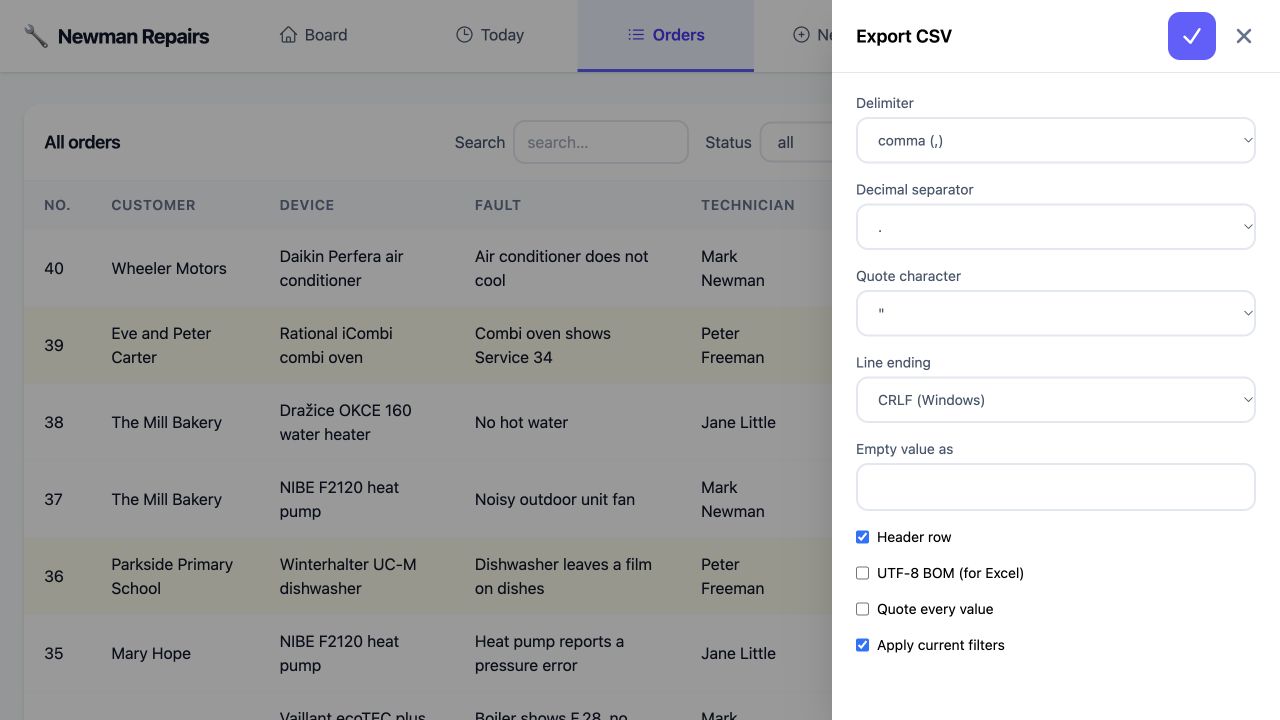
Choose Export CSV
Choose the separator and other options in the dialog. If filters are available, check whether to use them: this determines whether you download filtered records or the whole available overview, not just the page currently displayed.
Download and open the file
Confirm the download. Use CSV import in your spreadsheet program and select the correct encoding and separator. For values submitted by other people, import them as text so they do not run as formulas.
Full export for the owner
Sign in to Vibee
In app management, choose export on the correct app card. A colleague’s sign-in inside the app is not sufficient for this export.
Wait for completion
The ZIP file contains the app’s settings, pages and actions, table descriptions, CSV data, a user list and uploaded files. Passwords and security keys are not included. Allow large downloads to finish.
Check the contents
Open the archive and check the tables and files you need. You can keep the export for moving data; the app does not have a button to restore automatically from this ZIP.